

- Anonymouskeyboard_arrow_down

- loginLogin
Help & Guides - How to Use Ownquity
Showing all articles
Search:
info_iOwnquity Overview
Summary:
Welcome to Ownquity — your all-in-one platform for managing your real estate finances.
Ownquity helps homeowners, prospective buyers, and real estate professionals make informed financial decisions by bringing together mortgage tracking, property management, financial calculators, and community-driven rate insights in one place.
Key Features:
Property & Mortgage Tracking Add your properties and mortgages to track their value, equity, and payment progress over time. Visual dashboards give you a clear picture of where you stand financially.
Financial Calculators Access a wide range of calculators including mortgage payments, penalties, debt consolidation, buy vs. rent analysis, HELOC vs. refinance comparisons, and real estate vs. stock investment analysis.
Mortgage Rate Comparison Compare current mortgage rates from major Canadian banks. See posted and discounted rates for fixed and variable terms, and find the best deal for your situation.
Community Rate Reporting See what rates others are being offered and contribute your own — helping everyone negotiate better deals through crowdsourced rate transparency.
Dashboards & Charts Customize your dashboard with charts that track home value, equity growth, net worth, interest paid, and more. Look forward or backward in time to plan your financial future.
Messaging Chat directly with mortgage specialists, realtors, and other users. Discuss mortgage topics in community forums or have private conversations about your specific needs.
Your Financial Profile Track your assets, debts, employment, and income to understand your full financial picture and mortgage qualification ability.
Getting Started:
- Browse the site as an Anonymous User to explore rates, calculators, and help articles.
- Log in as a Guest User to try out dashboards, property tracking, and messaging.
- Register with Google to save your data across devices and unlock the full experience.
For more details on account types, see the User Accounts help article.
info_iUser Accounts
Summary:
This article describes the different accounts with their abilities and differences.
As you first visit the site, you are browsing using anonymous user.
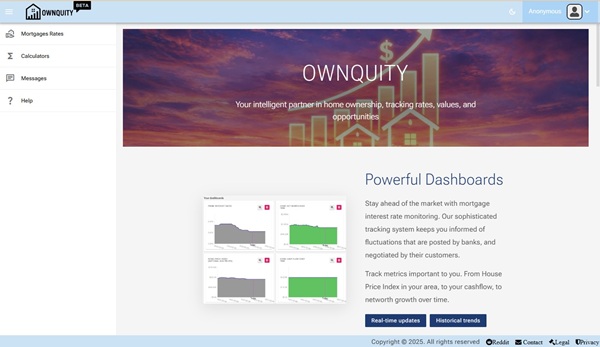
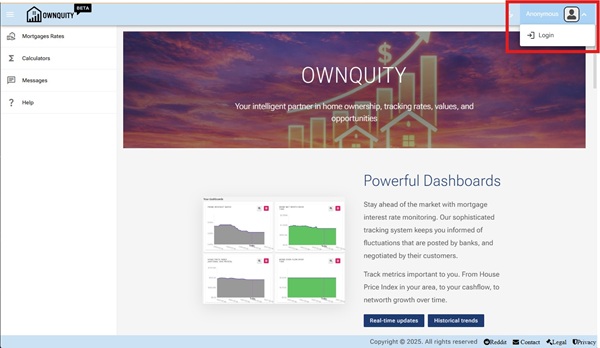
You can switch to a guest user or a registered user to get access to the advanced features.
This is done through the login button:
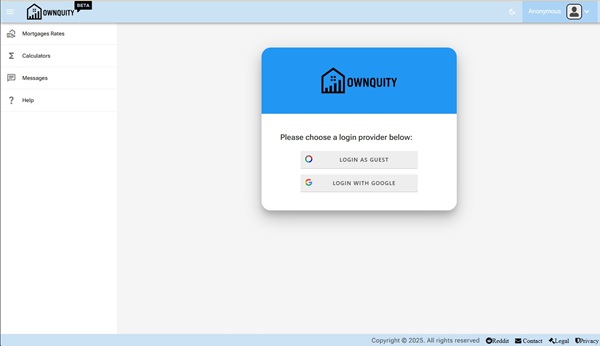
After clicking the login button, you can choose to login as a Guest user or a Registered User:
Anonymous User:
This is most basic user account for basic usage.
This account allows you to see current Mortgage rates, access calculators, read chats, and see the help pages.
Guest User:
This is a basic user account for trialing or temporary usage.
This account is tied to your browser. The information stays with the browser.
You can use all the basic site features, such as dashboards, property and mortgage tracking, and updating settings through this account.
You can also chat with other users and mortgage specialists/realtors.
If you reset your browser history, you will lose access to the account.
If you register later, the information must be re-enter again in your registered user account.
The account maybe removed automatically after long periods of inactivity.
Registered User:
This account is registered using an identity provider such as Google.com. The account allows the information to be saved and retrieved from multiple browsers.
A registered user can also be upgraded to Mortgage Specialist and Realtor special accounts which allow you to add content to the site.
These two accounts are an upgraded version of a Registered User account.
Details on how to upgrade to these two account types can be done by contacting us at [email protected]
Mortage Specialist:
This account is a enhanced version of the Registered User Account.
This account is for Mortgage Specialists who wants to advertise their contact info on the site.
They can update their information such as their affiliated banks, and update mortgage rates/details that will be seen by other users.
This user requires manual upgrade from a regular user account by emailing [email protected]
Realtor:
This account is a enhanced version of the Registered User Account.
This account is for Realtors who wish share property listings with other users of the site.
These listigs are integrated with helpful calculators which quickly can calculate the financial impact of these properties.
The property listings are shared through scaning QR Codes that can be printed or embeded in documents.
This user requires manual upgrade from a regular user account by emailing [email protected]
info_iAdding a house
Summary:
This article shows how you can add a house to your account.
Adding houses to your account will help you:
- Track the financial aspects of the house over time
- Provide a way to calculate financial impact of switching to mortgages, or modifying existing mortgage.
Note: Mobile browsers have a simplified UI which may not contain all controls. For best experience, a desktop browser is recommended.
Steps to add a house:
- Navigate to the "Your Properties" page using the main menu.
- Click on the "Add New Home" tile
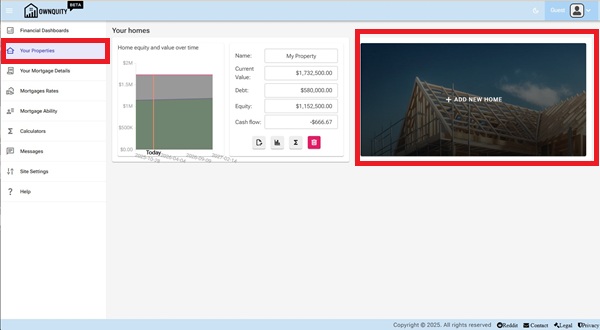
- Fill in the required details about the house in the form that appears.
- Fill In Name of the House as a quick identifier (e.g., "My First Home", "Vacation Home", etc.)
- Choose a Region of the House. This helps in calculating/Charting property value over time using the house price index data for the region.
- Fill in the purchase date. This helps in calculating/Charting property value over time.
- If House is not purchased, uncheck the purchased checkbox. This will exclude the house from your networth/equity calculations.
- Fill in the value and valuation date of the house. This works in conjunction with the house price index to track property value over time.
- Fill in the details of thse house if desired. The property Taxes, Heating Cost Per Year, Maintenance Fees Per Month are used to calculate mortgage elegibility.
- Fill in the monthly rental income if this house is (or planned to be) rented. This will be considered part of your income when performing mortgage calculations.
- Fill in the yearly expenses if there are expenses such as condo fees etc. This will be considered when calculating mortgage elegibility.
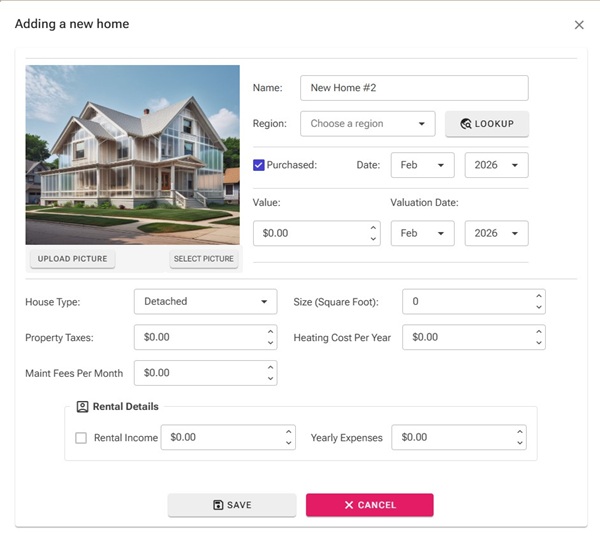
- Click the "Save" button to add the house to your account.
Additional Information:
- See Adding Mortgage article on how to add mortgages against your home.
- See Home Calculations article on what calculators are available with your home.
- See Home Chart article on how to interpret the generated charts for your home.
- See dashboard article on how to interpret the dashboards for your home equity.
info_iAdding a mortgage
Summary:
This article shows how you can add a mortgage to your account.
Adding mortgages to your account will help you:
- Track the debt aspects of your home over time.
- Provide a way to calculate financial impact of switching mortgages, renewing mortgages, prepayment of mortgage principal and refinancing options.
Note: Mobile browsers have a simplified UI which may not contain all controls. For best experience, a desktop browser is recommended.
Steps to add a mortgage:
- Navigate to the "Your Mortgage Details" page using the main menu.
- Click on the "Add Existing Mortgage" tile
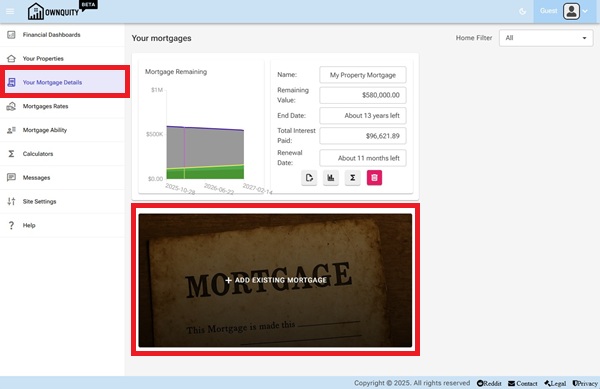
- Fill in the required details about the mortgage in the form that appears.
- Select a property that the mortgage is against, this will be used to calculate equity in the property.
- Select a lender for the mortgage. This will be used in calculators to help choose renew options.
- Enter a description, this will be shown as mortgage name in the dashboard.
- Enter the current amount left on the mortgage. The initial amount is automatically calculated based on the interest rate and start date.
- Enter the interest rate. For variable mortgages, this is converted into a BOC prime rate difference to automatically track when interest rates change.
- Enter the start/Maturity date for the mortgage. You can lock either of the dates, and use the Mortgage Term to automatically set the other value.
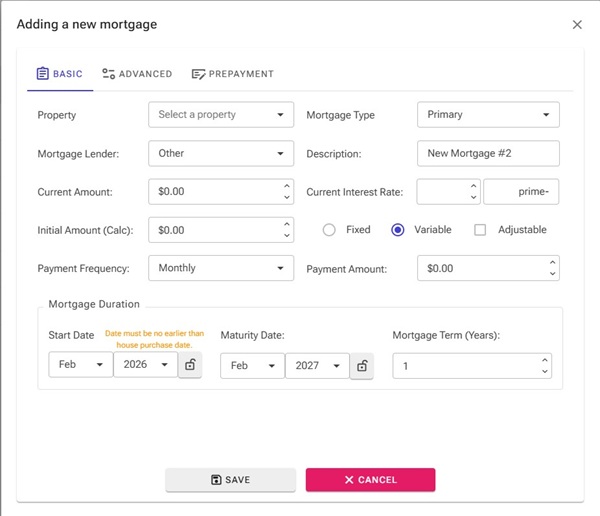
- Click the "Save" button to save the mortgage to your account.
Additional Information:
- See Adding Home article on how to add homes to your account.
- See Mortgage Calculations article on what calculators are available with your mortgage.
- See Mortgage Chart article on how to interpret the generated charts for your mortgage.
- See dashboard article on how to interpret the dashboards for your home equity.
Summary:
This article shows how you can add a mortgage to your account.
Adding mortgages to your account will help you:
- Track the debt aspects of your home over time.
- Provide a way to calculate financial impact of switching mortgages, renewing mortgages, prepayment of mortgage principal and refinancing options.
Note: Mobile browsers have a simplified UI which may not contain all controls. For best experience, a desktop browser is recommended.
Steps to add a mortgage:
- Navigate to the "Your Mortgage Details" page using the main menu.
- Click on the "Add Existing Mortgage" tile
- Fill in the required details about the mortgage in the form that appears.
- Select a property that the mortgage is against, this will be used to calculate equity in the property.
- Select a lender for the mortgage. This will be used in calculators to help choose renew options.
- Enter a description, this will be shown as mortgage name in the dashboard.
- Enter the current amount left on the mortgage. The initial amount is automatically calculated based on the interest rate and start date.
- Enter the interest rate. For variable mortgages, this is converted into a BOC prime rate difference to automatically track when interest rates change.
- Enter the start/Maturity date for the mortgage. You can lock either of the dates, and use the Mortgage Term to automatically set the other value.
- Click the "Save" button to save the mortgage to your account.
Additional Information:
- See Adding Home article on how to add homes to your account.
- See Mortgage Calculations article on what calculators are available with your mortgage.
- See Mortgage Chart article on how to interpret the generated charts for your mortgage.
- See dashboard article on how to interpret the dashboards for your home equity.
info_iAdding a dashboard
Summary:
This article shows how you can add a dashboard to your account.
Dashboards are chart widgets that help track your financial status over time.
They can provide historic data as well as future projections on:
- Your networth over time
- Prime rates over time
- Home price index for areas of interest
- Your home value over time as calculated using home price index in the area.
- Total mortgage remaining for all mortgages.
- Total Principal paid for all mortgages
- Total interest paid for all mortgages
- Cashflow over time
Note: Mobile browsers have a simplified UI which may not contain all controls. For best experience, a desktop browser is recommended.
Steps to add a dashboard:
- Navigate to the "Financial Dashboards" page using the main menu.
- Click on the "Add Dashboard" tile
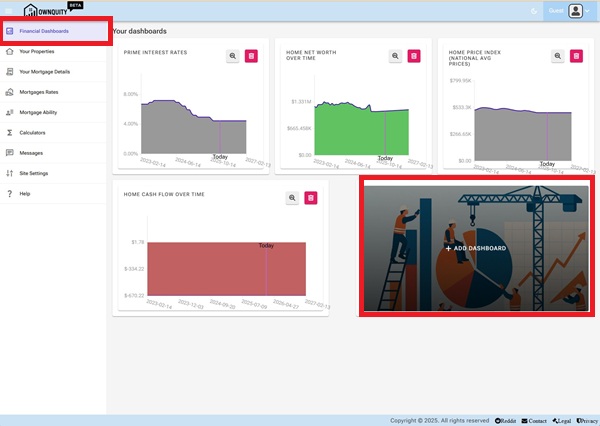
- Select the dashboard of interest
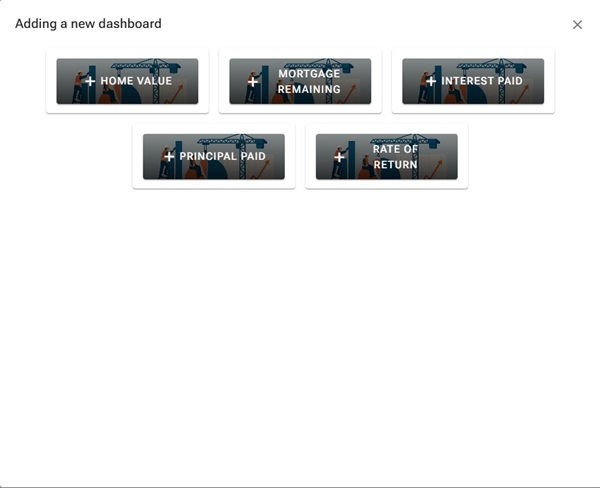
Note 1: Once a dashboard is added, it will be removed from choice of new dashboards to add
Note 2: The add dashboard button will not be shown if all dashboards are added
Updating Dashboard Settings:
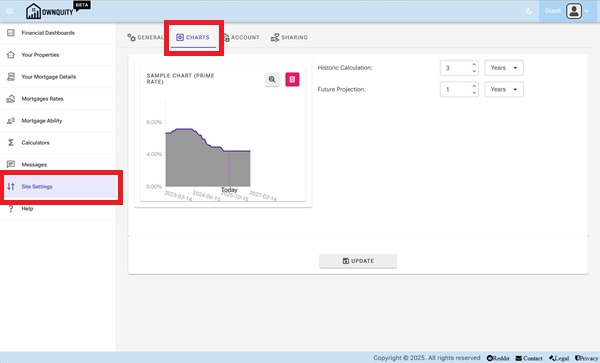
Each dashboard uses Chart settings that can be changed under site settings.
Navigate to the site settings, and the charts tab.
Here you can update the default history for the dashboard charts.
Additional Information:
- See Adding Mortgage article on how to add mortgages against your home.
- See Home Calculations article on what calculators are available with your home.
- See Home Chart article on how to interpret the generated charts for your home.
info_iAdding mortgage support information
Summary:
This article shows how you can add additional information to help calculate your mortgage ability.
When calculating mortgage eligibility, information such as your income, debts are used to calculate how much you can borrow.
Adding this information allows calculations to be accurate and reflect your situation.
Note: Mobile browsers have a simplified UI which may not contain all controls. For best experience, a desktop browser is recommended.
Accessing your mortgage information:
- Navigate to the "Mortgage Ability" page using the main menu.
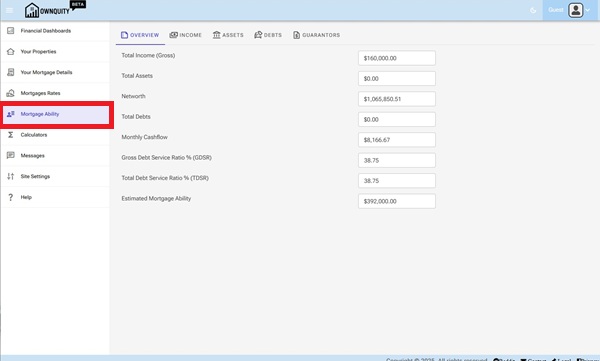
The Overview Tab shows your current mortgage situation. This is a readonly page and not for editing. When you update your information in the other Tabs (Income, Assets, Debts, Guarantors), as well as update your Mortgage and Properties, The overview tab will automatically be recalculated to reflect the new changes.
- Total Income represents the information filled in the Income Tab as well as any income generating assets under the Asset Tab.
- Total Assets represents the aggregate value of assets in the Assets Tab
- Total Debts represents the aggregate value of debts in the Debts tab
- GDSR represents your gross debt service ratio, comparison of your monthly income to housing costs (Mortgage, property taxes, heat and fees)
- TDSR represents your total debt service ratio, comparison of your monthly income to housing costs as well as other debts (loans and credit cards)
Modifying your income situation
- Navigate to the "Mortgage Ability" page using the main menu.
- Click on the "Income" Tab
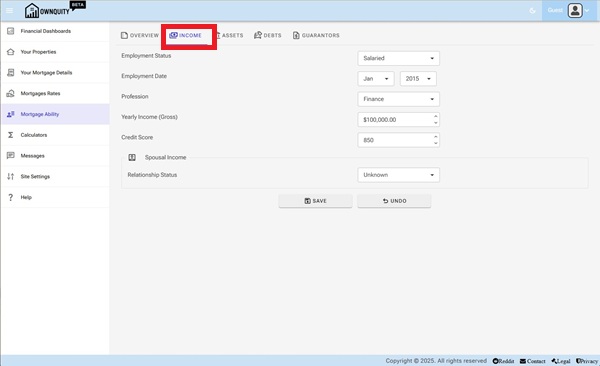
The Income Tab allows you to add employment details that can help determine if you are eligible for mortgage.
- Employment Status
- Salaried employees are the most straight forward for mortgage applications.
- Self Employed employees carry risk of financial stability. Usually an average of two years income is used during mortgage calculations.
- Commissioned employees also carry risk of financial stability. Usually an average of two years income is used during mortgage calculations.
- Unemployed. Passive income is solely used during mortgage calculations
- Profession
- Select your profession area. They may have an impact during mortgage approvals.
- Yearly Income
- Enter in your estimated yearly income.
- For Salaried employees, enter your yearly salary
- For Self Employed/ Commissioned employees, enter in your average salary from last two years.
- Enter in your estimated yearly income.
- Credit Score
- Enter in your credit score. This is an important number in determining mortgage eligibility.
Spousal Income maybe also used during mortgage calculations
- Enter in spousal income details if you wish to consider this in mortgage eligibility.
3, Click the "Save" button to save your income details to your account.
Modifying your assets
- Navigate to the "Mortgage Ability" page using the main menu.
- Click on the "Assets" Tab
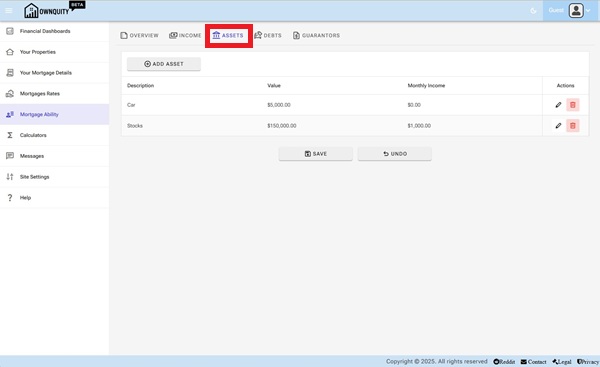
- Add assets by using the "Add Asset" Button.
- Delete assets by using the "delete" button under the "Actions" column of the "Assets" tab.
- Modify asset information using the "edit" button under the "Actions" column of the "Assets" tab.
Assets Tab allows you to add assets that may give you passive income. Assets maybe also used for collateral mortages against their value.
Modifying your debts
- Navigate to the "Mortgage Ability" page using the main menu.
- Click on the "Debts" Tab
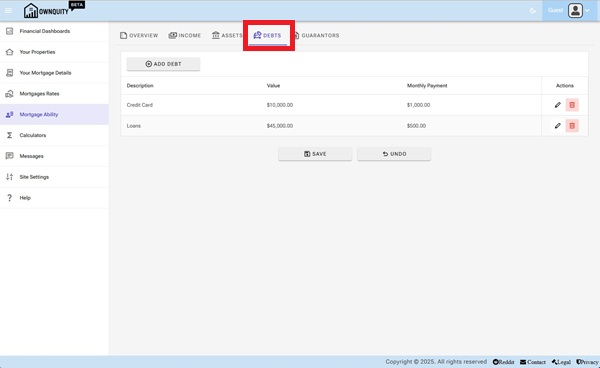
- Add debts by using the "Add Debt" Button.
- Delete debts by using the "delete" button under the "Actions" column of the "Debts" tab.
- Modify debt information using the "edit" button under the "Actions" column of the "Debts" tab.
Debts Tab allows you to add debts that may affect your monthly income. This information is used during calculating TDSR/GDSR ratios during mortgage eligibility calculations.
Modifying your guarantors
- Navigate to the "Mortgage Ability" page using the main menu.
- Click on the "Guarantors" Tab
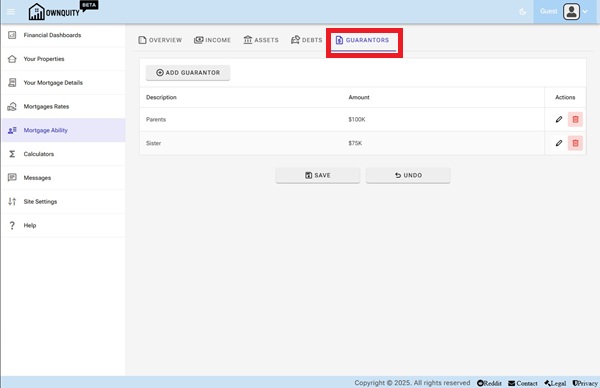
- Add guarantors by using the "Add Guarantor" Button.
- Delete guarantors by using the "delete" button under the "Actions" column of the "Guarantors" tab.
- Modify guarantor information using the "edit" button under the "Actions" column of the "Guarantors" tab.
Guarantors are optionally considered during mortgage calculations if your income is not enough to qualify for a mortgage.
Additional Information:
- See Adding Mortgage article on how to add mortgages against your home.
- See Home Calculations article on what calculators are available with your home.
info_iCustomizing site settings
Summary:
This article shows how you customize site settings.
- You can set your name and email.
- You can set your preferred language
- You can set your chart preferences
- You can manage and delete your account
- You can set your sharing preferences
Note: Mobile browsers have a simplified UI which may not contain all controls. For best experience, a desktop browser is recommended.
Customize General settings:
- Navigate to the "Site Settings" page using the main menu.
- Fill in the details as desired.
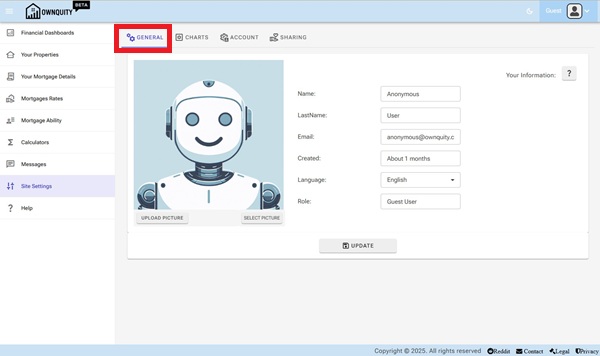
Email for registered user is used to send notifications (if enabled)
Email for Guest users is not used.
Name is used when contacting other users.
Language is used as default when searching for mortgage specialst and realtors that can speak the same language.
3.Click the "Update" button to update your information.
Customizing Chart settings
- Navigate to the "Site Settings" page using the main menu.
- Click on the "Charts" Tab
The chart settings controls how your dashboards look.
Here you can set the time period for charts.
3.Click the "Update" button to update your information.
Manage settings
- Navigate to the "Site Settings" page using the main menu.
- Click on the "Account" Tab
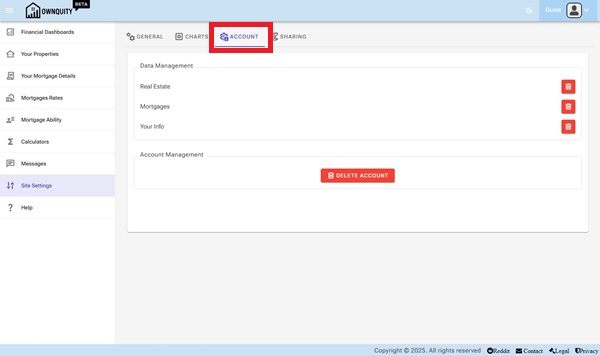
Here you can delete all your mortgages, properties, your information or your entire account.
Customizing Data Sharing settings
- Navigate to the "Site Settings" page using the main menu.
- Click on the "Sharing" Tab
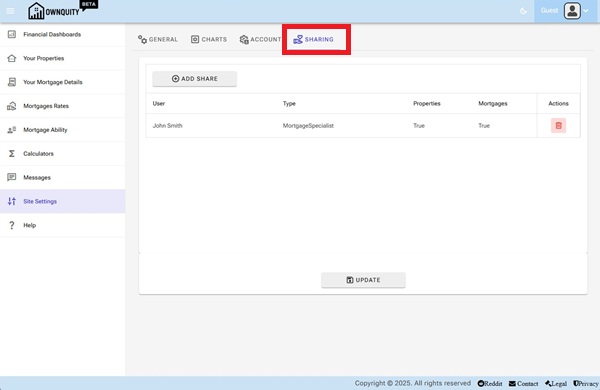
The sharing settings controls if you like to share your info with mortgage specialists or realtors.
This allows them to contact you with special offers or notify you of important events.
3.Click the "Update" button to save sharing options.
Additional Information:
- See accounts article on the difference account types.
info_iCalculators Overview
Summary:
The Calculators page gives you access to a suite of financial calculators designed to help with mortgage decisions and investment comparisons.
Each calculator is self-contained � enter your parameters, click Calculate, and read the detailed results.
Note: Mobile browsers have a simplified UI which may not contain all controls. For best experience, a desktop browser is recommended.
How to open the Calculators page:
- Navigate to Calculators using the main menu.
- The page shows a list of all available calculators with a short description.
- Click the calculator icon on the row you want to open.
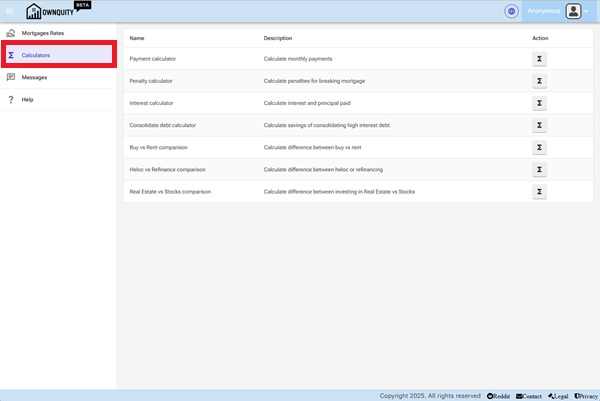
[Screenshot: Calculators page showing the list of available calculators]
Available Calculators:
| Calculator | What it does |
|---|---|
| Payment Calculator | Estimates your regular mortgage payment for a given loan amount, rate, amortization and frequency. |
| Penalty Calculator | Estimates the break penalty (IRD or 3-months' interest) for exiting a mortgage early. |
| Interest Calculator | Shows total interest and principal paid over a specific mortgage term. |
| Consolidate Debt | Compares the cost of keeping existing debts vs. rolling them into a lower-rate mortgage. |
| Buy vs Rent | Compares buying a home against renting and investing the down payment over a chosen period. |
| HELOC vs Refinance | Compares accessing home equity via a HELOC against a full mortgage refinance on a net-cost basis. |
| Real Estate vs Stocks | Compares a leveraged real estate investment against an equivalent stock-market investment using identical cash deployment. |
Sharing a Calculation:
Every calculator includes a Share Link button that encodes your current inputs into a URL.
You can bookmark it, share it, or use it to return to the same scenario later.
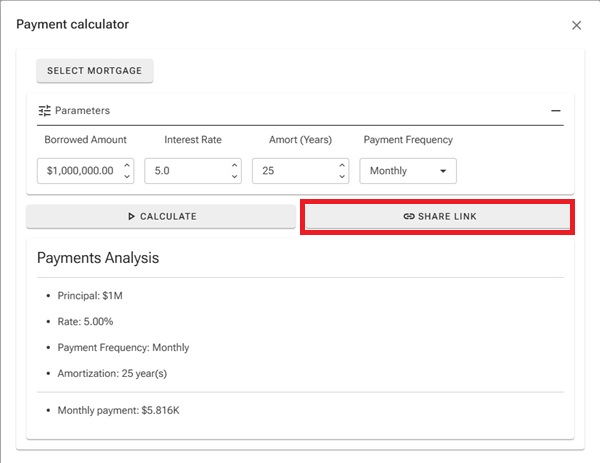
[Screenshot: Calculator dialog showing the Share Link button]
Pre-filling from a saved Mortgage:
The Payment, Debt Consolidation, and Buy vs Rent calculators include a Select Mortgage button.
This pre-fills the interest rate and amortization from a mortgage product saved in the system.
Detailed help for each calculator:
Each calculator has its own help article accessible from the help icon on the Calculators page:
- Payment Calculator
- Penalty Calculator
- Interest Calculator
- Consolidate Debt Calculator
- Buy vs Rent Calculator
- HELOC vs Refinance Calculator
- Real Estate vs Stocks Calculator
info_iPayment Calculator
Summary:
The Mortgage Payment Calculator estimates your regular mortgage payment based on the loan amount, interest rate, amortization period, and payment frequency.
Use this calculator to compare different rate and amortization scenarios before committing to a mortgage.
Note: Mobile browsers have a simplified UI which may not contain all controls. For best experience, a desktop browser is recommended.
How to open the calculator:
- Navigate to the Calculators page using the main menu.
- Find Payment Calculator in the list and click the calculator icon to open it.
[Screenshot: Calculators page showing the list of available calculators]
Input Parameters:
| Parameter | Description |
|---|---|
| Borrowed Amount | The principal loan amount (e.g. the mortgage balance). |
| Interest Rate (%) | The annual mortgage interest rate. |
| Amortization (Years) | The total number of years to repay the mortgage in full. |
| Payment Frequency | How often payments are made (Monthly, Bi-Weekly, Weekly, etc.). |
You can also click Select Mortgage to pre-fill the rate and amortization from a saved mortgage product.
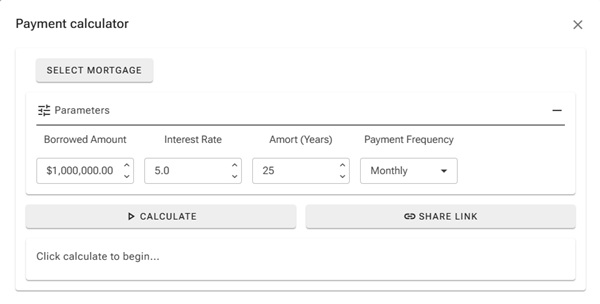
[Screenshot: Payment calculator with inputs filled in]
Reading the Results:
The results section shows:
- The payment amount per period (e.g. monthly payment).
- Total interest paid over the full amortization.
- Total amount paid (principal + interest).
- A payment breakdown comparing interest vs. principal over time.
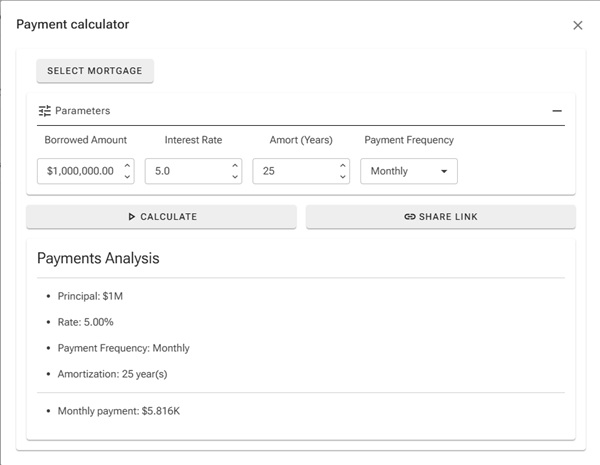
[Screenshot: Payment calculator results showing breakdown]
Tips:
- A shorter amortization period means higher payments but significantly less total interest paid.
- Increasing payment frequency (e.g. Bi-Weekly Accelerated) can shorten your amortization and save thousands in interest.
- Use the Share Link button to save or share a specific scenario.
Additional Information:
- See the Penalty Calculator help article to estimate break costs before changing your mortgage.
- See the Interest Calculator help article to see how much interest is accrued over a specific term.
info_iPenalty Calculator
Summary:
The Mortgage Penalty Calculator estimates the break penalty you would owe if you exit your mortgage before the end of your term.
In Canada, fixed-rate mortgages use the Interest Rate Differential (IRD) method, while variable-rate mortgages typically use 3 months' interest.
Note: Mobile browsers have a simplified UI which may not contain all controls. For best experience, a desktop browser is recommended.
How to open the calculator:
- Navigate to the Calculators page using the main menu.
- Find Penalty Calculator in the list and click the calculator icon.
[Screenshot: Calculators page showing the list of available calculators]
Input Parameters:
| Parameter | Description |
|---|---|
| Borrowed Amount | The current outstanding mortgage balance. |
| Interest Rate (%) | Your current mortgage interest rate. |
| Comparable Rate (%) | The lender's current rate for a term matching your remaining term (Fixed only). |
| Term Left (Years) | The number of years remaining on your current mortgage term. |
| Mortgage Type | Select Fixed or Variable to apply the correct penalty formula. |
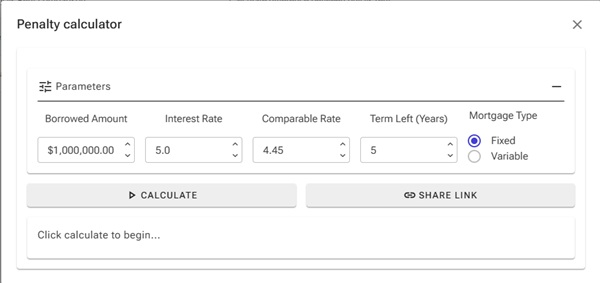
[Screenshot: Penalty calculator with Fixed mortgage type selected and inputs filled in]
Reading the Results:
For Fixed-Rate mortgages:
The penalty is the greater of:
- 3 months' interest on the outstanding balance at your contract rate, or
- IRD = (Your Rate - Comparable Rate) x Outstanding Balance x Term Remaining
For Variable-Rate mortgages:
The penalty is simply 3 months' interest on the outstanding balance.
The results show which method applies and the estimated penalty amount.
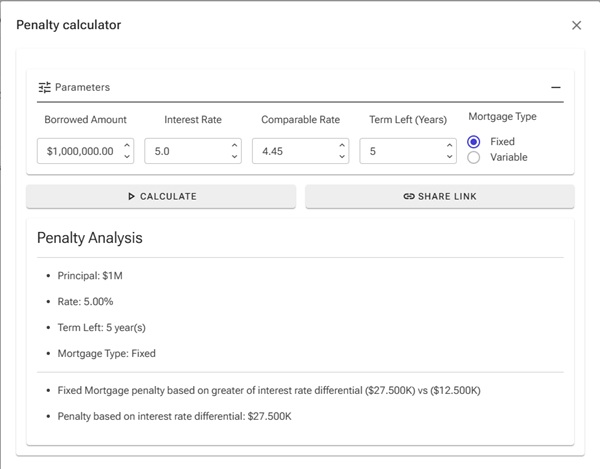
[Screenshot: Penalty calculator results showing the penalty breakdown]
Tips:
- The comparable rate is provided by your lender. call them to get the exact figure for the most accurate result.
- Variable-rate penalties are almost always lower than fixed-rate IRD penalties.
- If you are at or near your renewal date, the penalty may be waived. Check with your lender.
Additional Information:
- See the Payment Calculator help article to model a new mortgage after breaking.
- See the HELOC vs Refinance Calculator help article to compare refinancing options including the cost of the penalty.
info_iInterest Calculator
Summary:
The Interest Calculator shows how much total interest and principal you will pay over a specific mortgage term (not the full amortization).
This is useful when you want to understand the true cost of your mortgage during a fixed term before renewal.
Note: Mobile browsers have a simplified UI which may not contain all controls. For best experience, a desktop browser is recommended.
How to open the calculator:
- Navigate to the Calculators page using the main menu.
- Find Interest Calculator in the list and click the calculator icon.
[Screenshot: Calculators page showing the list of available calculators]
Input Parameters:
| Parameter | Description |
|---|---|
| Borrowed Amount | The current outstanding mortgage balance. |
| Interest Rate (%) | The annual mortgage interest rate for the term. |
| Term Left (Years) | The length of the term to analyse (e.g. 5 years). |
| Amortization (Years) | The remaining amortization used to calculate the payment amount. |
| Payment Frequency | How often payments are made (Monthly, Bi-Weekly, Weekly, etc.). |
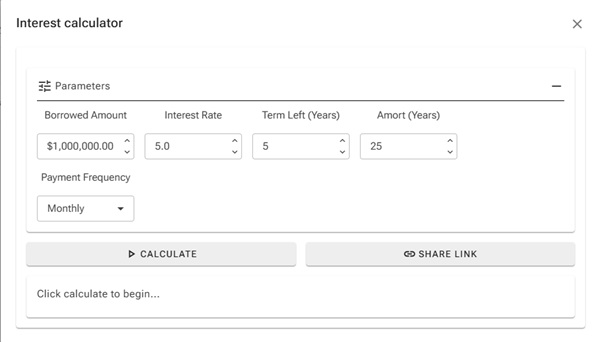
[Screenshot: Interest calculator with inputs filled in]
Reading the Results:
The results show for the specified term:
- The regular payment amount per period.
- Total interest paid during the term.
- Total principal repaid during the term.
- Remaining balance at the end of the term.
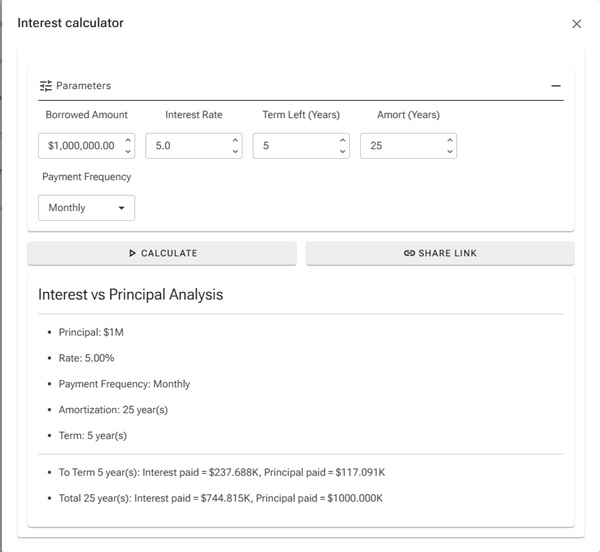
[Screenshot: Interest calculator results showing interest vs principal split]
Tips:
- Use the term length (e.g. 5 years) rather than the full amortization to see what you actually pay before your next renewal.
- Even a 0.25% rate difference can result in thousands of dollars difference in interest paid over a 5-year term.
- Use the Share Link button to compare two scenarios side by side in separate browser tabs.
Additional Information:
- See the Payment Calculator help article for full amortization payment details.
- See the Penalty Calculator help article to estimate what it would cost to break your term early.
info_iDebt Consolidation Calculator
Summary:
The Debt Consolidation Calculator compares the cost of keeping your existing debts (credit cards, lines of credit, car loans, etc.) against rolling them all into a single mortgage at a lower interest rate.
It helps you decide whether consolidating saves money in interest and simplifies your monthly cash flow.
Note: Mobile browsers have a simplified UI which may not contain all controls. For best experience, a desktop browser is recommended.
How to open the calculator:
- Navigate to the Calculators page using the main menu.
- Find Consolidate Debt in the list and click the calculator icon.
[Screenshot: Calculators page showing the list of available calculators]
Step 1: Enter the consolidated mortgage terms:
| Parameter | Description |
|---|---|
| Interest Rate (%) | The mortgage rate you would consolidate into. |
| Amortization (Years) | The amortization for the consolidated mortgage. |
| Payment Frequency | How often the consolidated mortgage payments would be made. |
Step 2: Add your existing debts:
Click Add Debt to add each debt you want to consolidate.
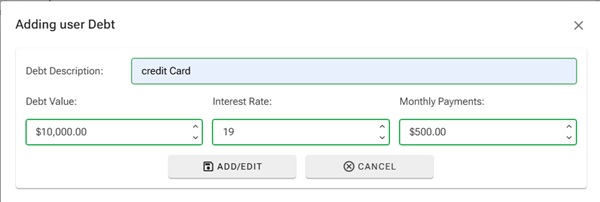 [Screenshot: Debt consolidation calculator showing the Add Debt button and debt list]
For each debt, enter:
| Field | Description |
|---|---|
| Description | A label to identify the debt (e.g. "Visa Card"). |
| Balance ($) | The current outstanding balance. |
| Interest Rate (%) | The current annual interest rate on the debt. |
| Monthly Payment ($) | Your current minimum or actual monthly payment. |
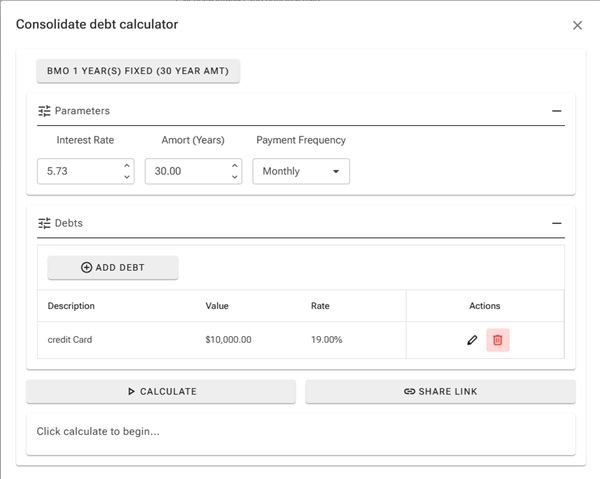
[Screenshot: Debt entry dialog with fields filled in]
Reading the Results:
The results compare:
- Current debts total: sum of all outstanding balances, total interest paid at existing rates over the remaining terms.
- Consolidated mortgage: the new single payment, total interest paid at the mortgage rate over the amortization.
- Net savings: the difference in total interest between keeping debts vs. consolidating.
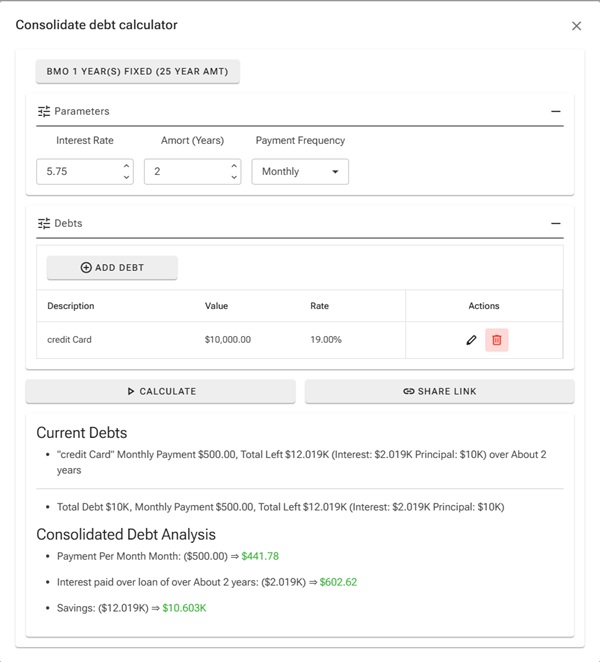
[Screenshot: Debt consolidation results showing savings breakdown]
Tips:
- Consolidating into a mortgage almost always reduces the interest rate, but extending the repayment period can offset savings. Use the shortest amortization you can afford.
- High-interest debts (credit cards at 20%+) benefit the most from consolidation.
- Consider whether your mortgage allows refinancing without a penalty before consolidating.
Additional Information:
- See the Penalty Calculator help article to estimate break costs if refinancing is required.
- See the HELOC vs Refinance Calculator help article to decide whether a HELOC or full refinance is best for accessing equity to consolidate.
info_iBuy vs Rent Calculator
Summary:
The Buy vs Rent Calculator compares the financial outcome of buying a home against renting and investing the down payment instead.
Both options are measured over the same holding period so the net financial position of each can be compared fairly.
Note: Mobile browsers have a simplified UI which may not contain all controls. For best experience, a desktop browser is recommended.
How to open the calculator:
- Navigate to the Calculators page using the main menu.
- Find Buy vs Rent in the list and click the calculator icon.
[Screenshot: Calculators page showing the list of available calculators]
Input Parameters:
| Parameter | Description |
|---|---|
| Home Price ($) | The purchase price of the property. |
| Down Payment (%) | The percentage of the purchase price paid upfront. |
| Interest Rate (%) | The annual mortgage interest rate. |
| Amortization (Years) | The full amortization period of the mortgage. |
| Home Appreciation (% / yr) | Expected annual growth in the property's value. |
| Yearly Expenses ($) | Annual carrying costs: property tax, insurance, maintenance. |
| Expenses Appreciation (% / yr) | Expected annual growth in carrying costs. |
| Monthly Rent ($) | The equivalent monthly rent for a comparable property. |
| Rent Growth (% / yr) | Expected annual increase in rent. |
| Investment Return (% / yr) | Expected annual return if the down payment were invested instead. |
| Length of Stay (Years) | How many years to hold and compare both scenarios. |
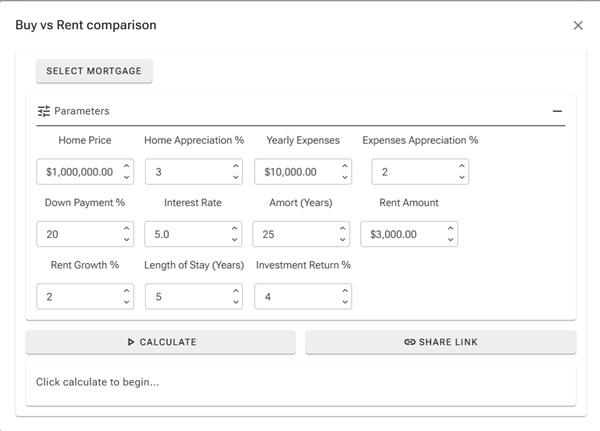
[Screenshot: Buy vs Rent calculator with all inputs filled in]
How the comparison works:
Buying side net gain:
Net Equity at Sale - Down Payment - Total Mortgage Payments - Total Property Expenses
- The buyer sells at the future property value, repays the remaining mortgage, and keeps the equity.
- All cash spent (down payment, mortgage payments, property expenses) is deducted.
Renting side net position:
Investment Growth - Total Rent Paid
- The renter invests the down payment at the expected return rate for the full period.
- All rent paid is deducted from the investment value.
This makes the comparison fair: both sides started with the same capital (the down payment).
Reading the Results:
The Inputs Summary section restates all parameters and derived values (mortgage amount, actual down payment in dollars).
The Buying Analysis section shows:
- Monthly mortgage payment (with formula: P, r, n)
- Total mortgage payments, interest paid, principal/equity accrued
- Total property expenses (compounded annually)
- Future property value, remaining mortgage balance, net equity at sale
- Total cash out vs. total cash in
The Renting Analysis section shows:
- Total rent paid (compounded annually)
- Investment growth of the down payment
The Summary section shows both net gains colour-coded green (positive) or red (negative).
The Conclusion states which option is better and by how much.
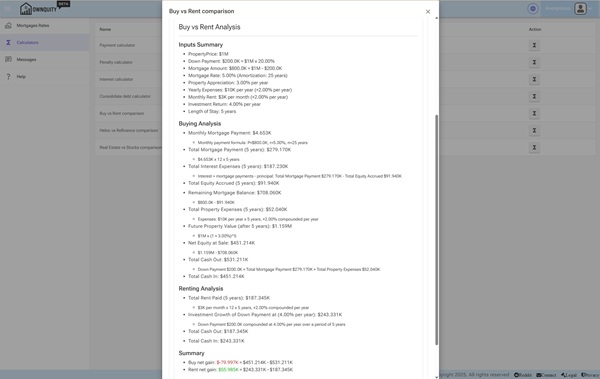
[Screenshot: Buy vs Rent results showing the full breakdown and conclusion]
Tips:
- A higher property appreciation rate strongly favours buying; a higher investment return rate favours renting.
- The longer the holding period, the more mortgage principal you repay and the more appreciation accumulates, generally favouring buying.
- Carrying costs (property tax, maintenance, insurance) are often underestimated; include realistic figures for an accurate comparison.
- Use the Share Link button to save or share a specific scenario.
Additional Information:
- See the Real Estate vs Stocks Calculator help article for a more detailed investment-focused comparison including rental income.
- See the Payment Calculator help article to model your mortgage payment in detail.
info_iHELOC vs Refinance Calculator
Summary:
The HELOC vs Refinance Calculator helps you decide the cheapest way to access equity in your home.
It compares a Home Equity Line of Credit (HELOC) which is interest-only and keeps your existing mortgage against a full refinance that wraps the borrowed amount into a new single mortgage.
The comparison uses net cost: interest paid minus principal repaid, so the refinance option is not unfairly penalised for paying down debt.
Note: Mobile browsers have a simplified UI which may not contain all controls. For best experience, a desktop browser is recommended.
How to open the calculator:
- Navigate to the Calculators page using the main menu.
- Find HELOC vs Refinance in the list and click the calculator icon.
[Screenshot: Calculators page showing the list of available calculators]
Input Parameters:
| Parameter | Description |
|---|---|
| Home Value ($) | Current appraised value of your home. |
| Equity Amount ($) | The amount of equity you want to access. |
| Current Mortgage Rate (%) | Your existing mortgage's annual interest rate is also used as the refinance rate. |
| Amortization (Years) | Used for both the existing mortgage and the new refinanced mortgage. |
| Payment Frequency | How often mortgage payments are made. |
| HELOC Rate (%) | The annual interest rate on the HELOC (typically Prime + a spread). |
| Break Penalty ($) | Any penalty owed for breaking your existing mortgage (enter 0 if at renewal). |
| Analysis Years | The number of years over which to compare the cost of each option. |
Note: The calculator assumes no existing mortgage balance (i.e. you own the home outright or are accessing pure equity). Available HELOC equity is capped at 80% of home value.
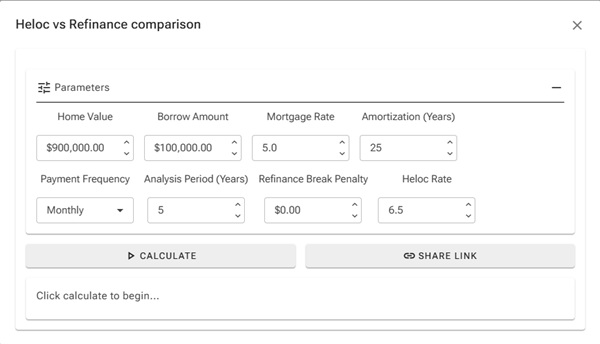
[Screenshot: HELOC vs Refinance calculator with inputs filled in]
How the comparison works:
HELOC option:
- Interest-only payments on the borrowed amount at the HELOC rate.
- The principal is never repaid during the analysis window. It remains outstanding.
- Net cost = total interest paid (pure cost, no equity offset).
Refinance option:
- The borrowed amount is added to the existing mortgage balance and refinanced at the current rate.
- Payments amortize the full balance, so principal is repaid each period.
- Net cost = total interest paid ? principal repaid + break penalty.
- This is fair: principal repaid is equity returned to you, not a true cost.
Reading the Results:
The HELOC Option section shows:
- HELOC monthly payment (interest only)
- Total interest paid over the analysis period
- Principal outstanding at the end (full borrowed amount is never reduced)
- Net cost
The Refinance Option section shows:
- New monthly payment
- Total interest paid over the analysis period
- Principal repaid over the analysis period
- Break penalty (if any)
- Net cost (interest ? principal repaid + penalty)
- Formula note showing the net cost calculation
The Conclusion states which option costs less and by how much.
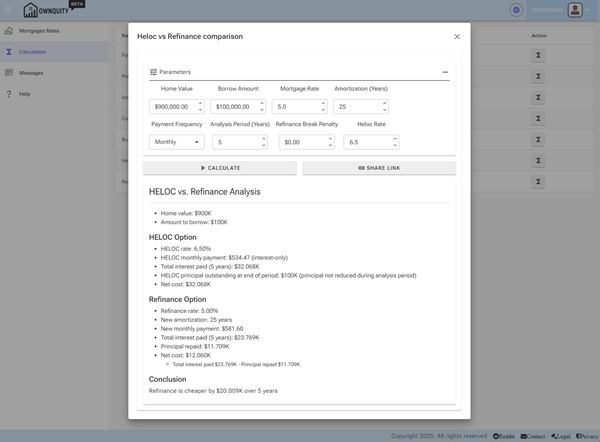
[Screenshot: HELOC vs Refinance results showing both options and the conclusion]
Tips:
- HELOCs have lower initial payments but leave the full principal outstanding. a refinance pays down the loan and builds equity.
- If you plan to repay the borrowed amount within 2-3 years, the HELOC's lower total interest often wins.
- For longer time horizons the refinance typically wins due to the principal repayment credit.
- A large break penalty significantly narrows or eliminates the refinance advantage. enter the accurate penalty for a realistic comparison.
Additional Information:
- See the Penalty Calculator help article to estimate your break penalty before entering it here.
- See the Debt Consolidation Calculator help article if you plan to use the equity to pay off other debts.
info_iReal Estate vs Stocks Calculator
Summary:
The Real Estate vs Stocks Calculator compares the long-term financial outcome of investing in real estate (leveraged via a mortgage) against investing the equivalent capital directly into a stock-market index fund.
The comparison is fair: both sides deploy identical cash The stock investor invests the down payment as a lump sum and mirrors the net monthly out-of-pocket cost of the real estate investor month by month.
Note: Mobile browsers have a simplified UI which may not contain all controls. For best experience, a desktop browser is recommended.
How to open the calculator:
- Navigate to the Calculators page using the main menu.
- Find Real Estate vs Stocks in the list and click the calculator icon.
[Screenshot: Calculators page showing the list of available calculators]
Input Parameters:
| Parameter | Description |
|---|---|
| Home Price ($) | Full purchase price of the investment property. |
| Down Payment (%) | Percentage of the purchase price paid upfront. |
| Mortgage Rate (%) | Annual mortgage interest rate. |
| Amortization (Years) | Total amortization period of the mortgage. |
| Payment Frequency | How often mortgage payments are made. |
| Home Appreciation (% / yr) | Expected annual increase in the property's value. |
| Yearly Expenses ($) | Annual carrying costs: property tax, insurance, maintenance, etc. |
| Expenses Appreciation (% / yr) | Expected annual growth in carrying costs. |
| Monthly Rental Income ($) | Net monthly rental income (leave at 0 for an owner-occupied property). |
| Rental Income Appreciation (% / yr) | Expected annual growth in rental income. |
| Stock Return (% / yr) | Expected annual stock market return (e.g. 8% for a broad index fund). |
| Holding Period (Years) | Number of years to hold the investment before comparing outcomes. |
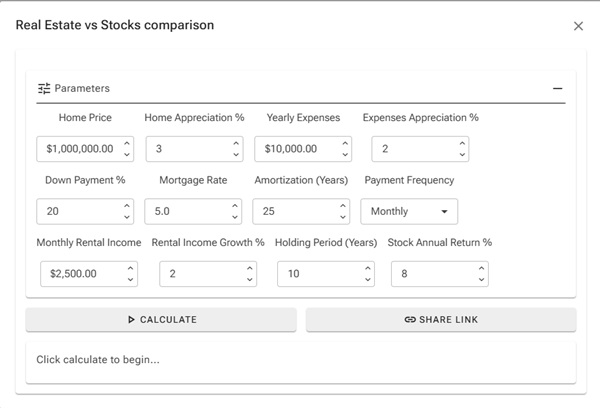
[Screenshot: Real Estate vs Stocks calculator with all inputs filled in]
How the comparison works:
Real estate side net gain:
Total Cash In ? Total Cash Out
- Cash Out: down payment + all mortgage payments + all carrying expenses.
- Cash In: net equity at sale (future property value ? remaining mortgage) + total rental income received.
Stock market side net gain:
Total Stock Portfolio Value - Total Capital Deployed
- The stock investor invests the same down payment as a lump sum on day 1, compounded at the stock return rate.
- Every month they also invest the same net out-of-pocket amount the real estate investor spends (mortgage + expenses ? rental income) into stocks as a monthly contribution.
- If rental income exceeds costs (positive cash flow), the real estate investor pockets that surplus; the stock comparison treats it as zero additional contribution.
- Capital deployed = down payment + sum of all monthly contributions.
This approach ensures both sides spend identical cash the only question is which grows more.
Reading the Results:
The Inputs Summary section restates all parameters and derived values.
The Real Estate Option section shows (with formula notes):
- Monthly mortgage payment
- Total mortgage payments, interest paid, principal repaid, remaining balance
- Total carrying costs (compounded annually)
- Total rental income received (if applicable)
- Future property value, remaining mortgage, net equity at sale
- Total cash out and total cash in
The Summary section shows both net gains colour-coded green (positive) or red (negative).
The Conclusion states which option performed better and by how much.
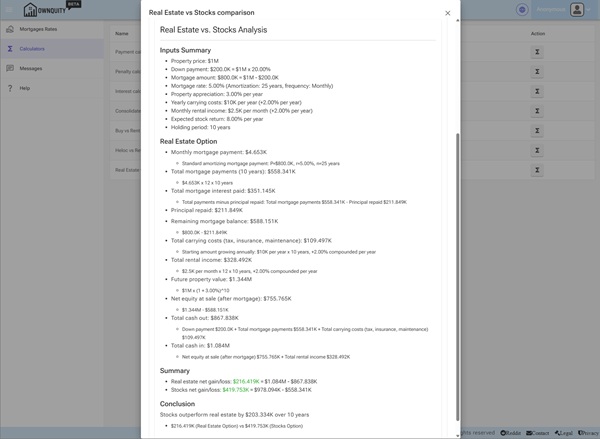
[Screenshot: Real Estate vs Stocks results showing both options and the conclusion]
Tips:
- Leverage amplifies both gains and losses. A highly appreciated property with a small down payment can dramatically outperform stocks; a flat or declining market can dramatically underperform.
- Rental income significantly shifts the comparison in real estate's favour by reducing net monthly cash outflow and creating a second income stream.
- Higher stock return assumptions (12%+) tend to favour stocks; realistic long-term index returns of 6-8% often make real estate competitive for leveraged purchases in appreciating markets.
- Transaction costs (legal fees, land transfer tax, realtor commissions) are not included. These materially reduce the real estate return, especially for short holding periods.
- Use the Share Link button to save or share a specific scenario.
Additional Information:
- See the Buy vs Rent Calculator help article for a simpler owner-occupied comparison.
- See the Payment Calculator help article to understand the mortgage payment calculation in detail.
info_iHistoric Real Estate vs Stocks Calculator
Summary:
The Historic Real Estate vs Stocks Calculator replays a real historical time period to compare what actually happened when investing in real estate (via a leveraged mortgage) versus putting the equivalent capital into a major stock-market index.
Unlike the forward-looking Real Estate vs Stocks Calculator, this tool uses real historical home-price data and actual index returns for the period you choose — so both sides are grounded in what genuinely occurred.
Note: Mobile browsers have a simplified UI which may not contain all controls. For best experience, a desktop browser is recommended.
How to open the calculator:
- Navigate to the Calculators page using the main menu.
- Find Historic Real Estate vs Stocks in the list and click the calculator icon.
Input Parameters:
| Parameter | Description |
|---|---|
| Start Date | The date the investment begins. Historical home-price and index data are loaded from this date. |
| End Date | The date the investment ends and the comparison is made. |
| Region | Canadian real-estate region used for historical home-price appreciation data (e.g. National Aggregate, Greater Vancouver, Toronto). |
| Stock Index | The index used for the stock-market side (e.g. S&P 500, TSX Composite). |
| Home Price ($) | Full purchase price of the property at the start date. |
| Down Payment (%) | Percentage of the purchase price paid upfront. |
| Mortgage Rate (%) | Annual mortgage interest rate. Automatically pre-filled with the closest historical Bank of Canada 5-year fixed rate for the selected start date. |
| Amortization (Years) | Total amortization period of the mortgage. |
| Payment Frequency | How often mortgage payments are made. |
| Yearly Expenses ($) | Annual carrying costs: property tax, insurance, maintenance, etc. |
| Expenses Appreciation (% / yr) | Expected annual growth in carrying costs over the period. |
| Monthly Rental Income ($) | Net monthly rental income (leave at 0 for an owner-occupied property). |
| Rental Income Appreciation (% / yr) | Expected annual growth in rental income over the period. |
Historic Date Lookup:
Click the search icon next to the Start Date field to open the Historic Date Lookup dialog.
This dialog lists well-known economic and market events (such as the 2008 financial crisis, COVID-19 market lows, Bank of Canada rate hike cycles, etc.) so you can quickly set the start date to a meaningful historical reference point and explore how each asset class behaved from that moment forward.
How the comparison works:
Both sides deploy identical cash over the same historical period:
Real estate side net gain:
Total Cash In ? Total Cash Out
- Cash Out: down payment + all mortgage payments + all carrying expenses.
- Cash In: net equity at sale (property value at end date using actual historical appreciation ? remaining mortgage) + total rental income received.
Stock market side net gain:
Total Stock Portfolio Value ? Total Capital Deployed
- The stock investor invests the same down payment as a lump sum on day 1, compounded using actual historical index returns for the chosen index and period.
- Every month they also invest the same net out-of-pocket amount the real estate investor spends (mortgage + expenses ? rental income) as a monthly contribution, also compounded at the actual historical rate.
- Capital deployed = down payment + sum of all monthly contributions.
This approach ensures both sides spend identical cash — the only question is which actually grew more over that specific historical window.
Reading the Results:
The Inputs Summary section restates all parameters and the derived values (e.g. actual mortgage rate fetched for the start date, computed holding period in years).
The Real Estate Option section shows:
- Monthly mortgage payment
- Total mortgage payments, interest paid, principal repaid, remaining balance
- Total carrying costs (compounded annually)
- Total rental income received (if applicable)
- Property value at end date (using actual historical regional home-price data)
- Remaining mortgage at end date, net equity at sale
- Total cash out and total cash in
The Stock Market Option section shows:
- Actual annualised return for the selected index over the period
- Total portfolio value at end date
- Total capital deployed
The Summary section shows both net gains colour-coded green (positive) or red (negative).
The Conclusion states which option performed better over the chosen historical period and by how much.
Tips:
- Use the Historic Date Lookup to start from a memorable market event and see how each investment would have played out from that point.
- The mortgage rate is pre-filled from historical Bank of Canada data but can be overridden to model a specific rate you actually had.
- Changing the Region can dramatically alter the real estate result — markets like Greater Vancouver and Toronto have historically appreciated far faster than the national aggregate.
- Index choice matters: the S&P 500 and TSX have had very different return profiles over most historical windows.
- Transaction costs (legal fees, land transfer tax, realtor commissions) are not included. These reduce the real estate return, especially for shorter holding periods.
- Compare results across multiple start dates to understand how sensitive outcomes are to the entry point.
Additional Information:
- See the Real Estate vs Stocks Calculator help article for a forward-looking, assumption-driven version of this comparison.
- See the Payment Calculator help article to understand the mortgage payment calculation in detail.
- See the Real Estate Analysis help article for analysis of a property you already own.
info_iBank Mortgages Comparison
Summary:
The Bank Mortgages page allows you to compare current mortgage rates from various Canadian lenders.
Use this feature to find the best rate for your situation, whether you're buying a new home, renewing, or refinancing.
Note: Mobile browsers have a simplified UI which may not contain all controls. For best experience, a desktop browser is recommended.
How to access Bank Mortgages:
- Navigate to the Mortgages section using the main menu.
- Select Bank Mortgages to view current rates from lenders.
Filtering Mortgage Rates:
| Filter | Description |
|---|---|
| Mortgage Type | Fixed or Variable rate mortgages. |
| Term | The length of the mortgage term (e.g., 1, 2, 3, 5 years). |
| Insured/Uninsured | Whether the mortgage requires CMHC insurance (down payment less than 20%). |
| Lender Type | Filter by bank, credit union, or alternative lenders. |
Understanding the Rate Display:
- Posted Rate: The advertised rate from the lender.
- Special Rate: Promotional or discounted rates that may be available.
- Rate Type: Fixed rates stay the same; Variable rates fluctuate with prime.
Reporting a Rate:
If you've received a different rate from a lender, you can report it to help other users:
- Click the Report Rate button next to any mortgage product.
- Enter the rate you were offered and any relevant details.
- Community-reported rates help everyone find better deals.
Using a Rate in Calculators:
- Click the Calculator icon next to any rate.
- The rate and term will be pre-filled in the mortgage calculator.
- Adjust other parameters like loan amount to see your estimated payment.
Tips:
- Variable rates are typically lower but carry more risk if interest rates rise.
- A longer term provides payment stability but may have a higher rate.
- Always compare the total cost of the mortgage, not just the interest rate.
- Consider breaking penalties when choosing term length.
Additional Information:
- See the Payment Calculator help article to estimate payments for a specific rate.
- See the Penalty Calculator help article to understand costs of breaking a mortgage early.
info_iUnderstanding Dashboard Charts
Summary:
This article explains how to interpret the various dashboard charts available in the application.
Each chart type provides unique insights into your financial situation, helping you make informed decisions about your home and mortgage.
Note: Mobile browsers have a simplified UI which may not contain all controls. For best experience, a desktop browser is recommended.
Available Dashboard Charts:
| Chart Type | What It Shows |
|---|---|
| Net Worth Over Time | Tracks your total assets minus liabilities, showing wealth growth. |
| Prime Rate History | Historical Bank of Canada prime rate changes affecting variable mortgages. |
| Home Price Index | Regional home price trends based on CREA data for your area. |
| Home Value Over Time | Your home's estimated value using local price index data. |
| Mortgage Remaining | Total outstanding mortgage balance across all your mortgages. |
| Principal Paid | Cumulative principal payments made over time. |
| Interest Paid | Total interest paid on your mortgages over time. |
| Cash Flow | Monthly income vs. expenses related to your property. |
| House Equity | The difference between your home value and mortgage balance. |
| Rate of Return | Your investment return on the property over time. |
Reading Time-Series Charts:
- X-Axis: Represents time (past history and future projections).
- Y-Axis: Represents the dollar amount or percentage.
- Solid Lines: Historical data based on actual records.
- Dashed Lines: Projected future values based on current trends.
Understanding Projections:
Future projections are estimates based on:
- Current mortgage terms and payment schedules
- Historical appreciation rates for your area
- Assumed continuation of current payment patterns
Note: Projections are estimates only and actual results may vary based on market conditions and personal circumstances.
Customizing Chart Display:
- Navigate to Settings from the main menu.
- Select the Charts tab.
- Adjust the history period and projection range.
- Changes apply to all dashboard charts.
Tips:
- Compare the Interest Paid chart with Principal Paid to see how your payments are allocated.
- Watch the Equity chart to track your ownership stake growing over time.
- Use Net Worth to see the big picture of your financial health.
- The Home Price Index helps you understand if your area is appreciating or depreciating.
Additional Information:
- See the Adding Dashboard help article to add new chart widgets.
- See the Adding House help article to set up your property for tracking.
info_iYour Financial Profile
Summary:
The Your Info page allows you to build a complete financial profile.
This information is used to calculate your mortgage qualification, track net worth, and provide personalized insights.
Note: Your financial data is stored securely and is never shared without your consent. Mobile browsers have a simplified UI which may not contain all controls. For best experience, a desktop browser is recommended.
Why Add Financial Information?
Your financial profile enables:
- Accurate mortgage pre-qualification estimates
- Net worth tracking and projections
- Debt-to-income ratio calculations
- Personalized recommendations from advisors
Information Categories:
| Category | Description |
|---|---|
| Assets | Bank accounts, investments, vehicles, and other valuable property. |
| Debts | Credit cards, car loans, student loans, and other liabilities. |
| Employment | Current job details, income, and employment history. |
| Guarantors | Co-signers who may support your mortgage application. |
Adding Assets:
- Navigate to Your Info from the main menu.
- Click Add Asset in the Assets section.
- Enter the asset type, description, and current value.
- Save to include it in your net worth calculation.
Adding Debts:
- In the Debts section, click Add Debt.
- Select the debt type (credit card, loan, line of credit, etc.).
- Enter the balance, interest rate, and monthly payment.
- This information affects your debt-to-income ratio.
Employment Information:
Your employment details help mortgage specialists assess your application:
- Current employer and position
- Annual income and employment type
- Length of employment
Adding Guarantors:
If you need a co-signer for your mortgage:
- Click Add Guarantor in the Guarantors section.
- Enter their contact information.
- Their income and assets can support your application.
Privacy and Security:
- All data is encrypted and stored securely.
- You control who can view your financial profile.
- Use the Share feature to grant access to specific advisors.
- You can delete your data at any time.
Tips:
- Keep your information up to date for accurate calculations.
- Include all debts, even small ones, for accurate debt ratios.
- Regular updates help track your financial progress over time.
Additional Information:
- See the Accounts help article for managing your user account.
- See the Adding Mortgage Ability Details help article for qualification requirements.
info_iMortgage Prepayments
Summary:
Mortgage Prepayments allow you to pay down your mortgage faster by making extra payments beyond your regular schedule.
This article explains how prepayments work and how to track them in the application.
Note: Mobile browsers have a simplified UI which may not contain all controls. For best experience, a desktop browser is recommended.
What Are Prepayments?
Prepayments are additional payments made toward your mortgage principal, beyond your regular scheduled payments. They can significantly:
- Reduce your total interest paid
- Shorten your amortization period
- Build equity faster
Types of Prepayments:
| Type | Description |
|---|---|
| Lump Sum | A one-time extra payment (e.g., tax refund, bonus). |
| Increased Payment | Permanently raising your regular payment amount. |
| Accelerated Payments | Switching to accelerated bi-weekly or weekly payments. |
| Double-Up Payments | Doubling your payment occasionally when allowed. |
Adding a Prepayment:
- Navigate to your mortgage details.
- Click Add Prepayment or the prepayment icon.
- Enter the prepayment amount and date.
- Select the prepayment type.
- Save to update your mortgage projections.
Prepayment Limits:
Most mortgages have prepayment privileges that limit how much extra you can pay without penalty:
- Annual Lump Sum: Typically 10-20% of the original principal per year.
- Payment Increase: Usually 10-20% increase to regular payments.
Warning: Exceeding your prepayment privileges may result in penalties. Check your mortgage terms.
Impact on Your Mortgage:
When you add a prepayment, the application recalculates:
- Remaining amortization period
- Total interest savings
- Updated payoff date
- Equity position
Viewing Prepayment History:
- Open your mortgage details.
- Navigate to the Prepayments tab.
- View all recorded prepayments and their impact.
Tips:
- Even small regular prepayments can save thousands in interest over time.
- Apply windfalls (bonuses, tax refunds) as lump sums.
- Consider accelerated bi-weekly payments—you make 26 half-payments (13 full payments) per year instead of 12.
- Review your prepayment privileges annually and use them fully.
Additional Information:
- See the Payment Calculator help article to model different prepayment scenarios.
- See the Adding Mortgage help article to set up your mortgage for tracking.
info_iReal Estate Analysis
Summary:
The Real Estate Analysis page provides detailed insights into your property investment performance.
Use this feature to understand your return on investment, equity growth, and compare against alternative investments.
Note: Mobile browsers have a simplified UI which may not contain all controls. For best experience, a desktop browser is recommended.
What is Real Estate Analysis?
Real Estate Analysis evaluates your property as an investment by calculating:
- Total return on investment (ROI)
- Equity accumulation over time
- Cash flow analysis
- Comparison with alternative investments
Key Metrics Explained:
| Metric | Description |
|---|---|
| Total Equity | Current home value minus outstanding mortgage balance. |
| ROI | Return on your initial investment (down payment + costs). |
| Cash-on-Cash Return | Annual cash flow divided by total cash invested. |
| Appreciation | How much your property value has increased. |
| Principal Paydown | Equity gained through mortgage payments. |
Accessing Real Estate Analysis:
- Navigate to Real Estate from the main menu.
- Select a property you've added to your account.
- Click Analysis to view detailed metrics.
Understanding Your Analysis:
Equity Breakdown:
- Shows how your equity is split between appreciation and principal payments.
- Helps you understand which factor is driving your wealth growth.
Cash Flow Analysis:
- For rental properties: rental income vs. expenses.
- For primary residence: carrying costs over time.
Investment Comparison:
- See how your real estate investment compares to stock market returns.
- Based on historical index fund performance.
Factors Affecting Your Analysis:
- Purchase Price: Your original investment amount.
- Current Value: Estimated using local home price index data.
- Mortgage Terms: Interest rate and payment schedule.
- Holding Period: How long you've owned the property.
- Additional Costs: Property taxes, insurance, maintenance.
Tips:
- Update your property value periodically for accurate analysis.
- Include all costs (closing costs, renovations) for true ROI.
- Use the analysis to decide when to refinance or sell.
- Compare with the Real Estate vs Stocks Calculator for scenario planning.
Additional Information:
- See the Adding House help article to set up your property.
- See the Understanding Dashboard Charts help article to interpret visual data.
- See the Real Estate vs Stocks Calculator help article for investment comparisons.
info_iBank Mortgage Rates
Summary:
The Bank Mortgage Rates page displays current mortgage rates offered by Canadian lenders.
Rates are updated regularly and include both posted (advertised) rates and community-reported rates that reflect actual discounts borrowers are receiving.
Note: Mobile browsers have a simplified UI which may not contain all controls. For best experience, a desktop browser is recommended.
How Rates Are Displayed:
| Column | Description |
|---|---|
| Name | The lender and mortgage product description, including term length and type. |
| Avg Rate | The average rate combining posted rates and community-reported discounts. |
| Direction Arrow | An up or down arrow indicates whether the average rate has recently increased or decreased. |
Fixed vs. Variable Rates:
- Fixed Rate: The interest rate is locked in for the entire mortgage term. Your payments stay the same regardless of market changes.
- Variable Rate: The interest rate fluctuates with the lender's prime rate. Your payment amount may change during the term.
Rate Ranges:
Hover over any rate to see the full range:
- Fixed Mortgages: Shows the minimum reported rate through to the posted rate.
- Variable Mortgages: Shows the calculated minimum variable rate through to the calculated standard variable rate.
Understanding Average Rates:
The average rate shown in the grid is a blended figure that takes into account:
- The lender's official posted rate.
- Community-reported rates from real borrowers who share what they were actually offered.
This gives you a more realistic picture of what rate you can expect when negotiating with a lender.
Insured vs. Uninsured Mortgages:
- Insured: Required when your down payment is less than 20%. Mortgage insurance (e.g., CMHC) is added to the mortgage. Insured rates are often lower.
- Uninsured: Available when your down payment is 20% or more. No insurance premium, but rates may be slightly higher.
Tips:
- Use the filters to narrow results by mortgage type, term, insured/uninsured status, and lender type.
- Compare the average rate, not just the posted rate — community data often reveals better deals.
- A small rate difference (e.g., 0.10%) can save thousands over the life of a mortgage.
- Use the Calculator feature on any rate to see how it translates into actual payments.
Additional Information:
- See the Bank Mortgages Comparison help article for a broader overview of the comparison page.
- See the Reporting Rates help article to learn how you can contribute your own rate data.
- See the Payment Calculator help article to estimate monthly payments for a specific rate.
info_iReporting Rates
Summary:
Reporting Rates is a community-driven feature that allows you to share the actual mortgage rate you were offered by a lender.
By crowd-sourcing real rate data, everyone benefits from a more accurate and transparent picture of what banks are actually offering beyond their posted rates.
Note: You must be signed in to report a rate.
Why Report Your Rate?
Banks publish posted rates, but the rate you're actually offered is often lower due to negotiation, promotions, or broker discounts.
Reported rates help the community:
- See what discounts other borrowers are receiving.
- Negotiate better by knowing what others have been offered.
- Track how actual rates trend compared to posted rates over time.
How to Report a Rate:
- Navigate to the Bank Mortgages page.
- Find the mortgage product you want to report on.
- Click the More Actions menu (?) next to the mortgage.
- Select Report Rate.
- Enter the interest rate you were offered and the amortization period.
- Click Submit to share your rate anonymously.
What Information Is Collected?
| Field | Description |
|---|---|
| Interest Rate | The actual rate the lender offered you (pre-filled with the posted rate for convenience). |
| Amortization | The amortization period in years associated with the rate you received. |
How Reported Rates Are Used:
- Reported rates are combined with posted rates to calculate an average rate for each mortgage product.
- The average rate is displayed in the main mortgage rates grid, giving a blended view of posted and real-world rates.
- A direction arrow (? or ?) appears when the average rate has recently shifted.
Privacy:
- All reported rates are anonymous. No personal information is shared with other users.
- Only the rate value, amortization, and submission date are recorded.
Tips:
- Report your rate even if it matches the posted rate — it confirms the posted rate is accurate.
- If you receive quotes from multiple lenders, report each one to help the community.
- Check back regularly to see how your reported rate compares to the current average.
- Use the rate data to strengthen your negotiation position with lenders.
Additional Information:
- See the Bank Mortgage Rates help article for details on how rates are displayed and interpreted.
- See the Bank Mortgages Comparison help article for an overview of the comparison page.
info_iUsing the Help System
Summary:
This article explains how to use the Help system in Ownquity to find the information you need quickly.
Help Button:
Every page in Ownquity has a help button (the ? icon) in the top-right corner of the header bar. Clicking it opens a help dialog with content specific to the page you are currently viewing.
This is the fastest way to get context-sensitive help without leaving your current page.
Help Page:
The Help page (accessible from the sidebar menu) lists all available help articles in one place. Each article is shown as a collapsible panel — click the header to expand and read the full article.
Searching for Help:
Use the search bar at the top of the Help page to find articles by keyword. Type a term related to your question (e.g., "mortgage", "calculator", "dashboard") and press Enter or click the search icon.
The search matches against keywords associated with each article. To clear the search and see all articles again, click the X button next to the search bar.
Tips for Effective Searching:
- Use single words rather than full sentences (e.g., "penalty" instead of "how to calculate penalty").
- Try different terms if your first search returns no results (e.g., "home" instead of "house", or "rate" instead of "interest").
- Common keywords include: dashboard, mortgage, calculator, settings, account, property, bank, rate, prepayment, equity, profile.
Available Help Topics:
The help system covers all major features of the site including:
- Account types — anonymous, guest, and registered users
- Property management — adding and tracking homes
- Mortgage management — adding mortgages and tracking prepayments
- Dashboards — creating and understanding dashboard charts
- Calculators — payment, penalty, interest, buy vs. rent, and more
- Bank mortgage rates — comparing and understanding rate data
- Community rate reporting — submitting and viewing crowdsourced rates
- Financial profile — managing your assets, debts, and income
- Settings — customizing your site experience
- Messaging — chatting with specialists and community members
info_iMessaging
Summary:
This article describes how to use the messaging features in Ownquity to communicate with other users, mortgage specialists, and realtors.
Message Types:
The Messages page organizes your conversations into three categories:
Direct Messages Private one-on-one conversations with other users, mortgage specialists, or realtors. These are visible only to you and the other participant.
Mortgage Discussions Community discussion threads about mortgage-related topics. You can participate in existing discussions or start new ones. These are split into:
- Your Discussions — threads you have participated in.
- All Discussions — all available mortgage discussion threads.
Listing Discussions Conversations tied to specific property listings shared by realtors. These allow you to ask questions or discuss details about a particular property.
Navigating Conversations:
The left sidebar shows all your available conversations organized by type. Click on any conversation to open it in the main chat area.
You can collapse or expand the sidebar using the arrow toggle button to give more room to the chat area, which is especially useful on smaller screens.
Sending Messages:
Once you have selected a conversation, type your message in the input area at the bottom of the chat panel and press Enter or click the send button to post it.
Notifications:
When you receive a new message while on a different page, the Messages menu item in the sidebar will show a blinking notification icon. This ensures you never miss an important conversation.
You can also enable browser push notifications in Settings to receive alerts even when the browser tab is not active.
Requirements:
- You must be logged in as a Guest or Registered user to use messaging.
- Anonymous users can read public mortgage discussions but cannot send messages.